1
Turn on FRIDAI MCP
Turn on the MCP switch and choose Claude Code, Codex or Claude web/app.
Brand Management
FRIDAI Insights
Reply Settings
Multi-Platform Integration
Free Quota
FRIDAI Chat Guide
AI Knowledge Base
Connect Claude or Codex to your AI rules
Notebook Writing Guide
Comment Management
Auto Post
If Your Account Is Suspended
Message Center
Booking System
Social Patrol
Integrations
Interactive Tools
Customer Management
Account Management
RuleOps MCP customer guide
Turn on MCP, paste the official connection URL and approve FRIDAI once. Then tell Claude or Codex what to review or change; the built-in optimizer supplies the current workflow.
For Claude and Claude Code, use a Claude custom connector: copy the official URL, paste it into the URL field and approve access. Codex and API-only Claude Code CLI accounts can use the setup text instead.
Before you start
First-time setup
Turn on the MCP switch and choose Claude Code, Codex or Claude web/app.
Claude Code/Codex: copy the setup request into the AI conversation. Claude web/app: copy the URL into a custom connector URL field.
A FansNetwork.ai page opens. Confirm your FRIDAI email, brand count, and the exact permissions requested.
After approving access, ask AI to list your brands or review a notebook. The optimizer is built in. If this conversation has not loaded FRIDAI tools, start one new conversation.
Turn on the switch, choose your tool and copy once. MCP and the optimizer use the same connection; no second package is needed.
Sign in to FRIDAI → MCP settings in the sidebar → turn on the switch. Check your FRIDAI email and brands.
Copy the setup request into a Claude Code conversation. The agent checks existing connections, adds MCP and starts authorization once. It reuses an existing connector from the same Claude account.
On FansNetwork.ai, sign in with your FRIDAI account, check the email and brand count, and allow the connection. You approve account access; the agent handles verification.
Complete FRIDAI MCP and the built-in optimizer now. This request authorizes this user-level connection: https://www.fansnetwork.ai/api/mcp/ruleops; do not ask whether to install it again.
1. Check available FRIDAI tools and existing connections. Reuse this connected URL; do not add duplicates or log out unnecessarily.
2. If installation is needed, locate claude, including its installed desktop location when absent from PATH. Run claude mcp add --transport http --scope user fridai-ruleops https://www.fansnetwork.ai/api/mcp/ruleops.
3. Only when authentication is missing, run claude mcp login fridai-ruleops once in a real interactive terminal. Keep the process and callback alive while I sign in to FRIDAI and allow the connection. Do not repeatedly open windows or wait for me to say done. If no interactive terminal is available, use Claude Code /mcp to authenticate. In Claude web/app add the URL at https://claude.ai/customize/connectors. Never run claude -p.
4. Actually call get_fridai_connection_status and get_notebook_optimization_protocol with empty arguments and no token. Verify my FRIDAI email, brand count and built-in optimizer. No ZIP, local Skill, download, activation or optimizerRunToken is needed. Do not launch a non-interactive model CLI for verification.
5. Finish with only actual MCP / FRIDAI authorization / optimizer results. For an incomplete step give the failed stage, actual error and one exact next action. If this conversation has not loaded the tools, say connection configured; new conversation needed to load tools, and provide the verification request to paste there. Do not reinstall or claim an uncalled tool was verified. Preserve client permission rejection reasons and identify the specific FRIDAI action needing permission. Do not edit Notebooks or send messages.
The agent executes setup, then reports MCP, FRIDAI authorization and optimizer results. A client limitation should produce the failed stage and one next action.
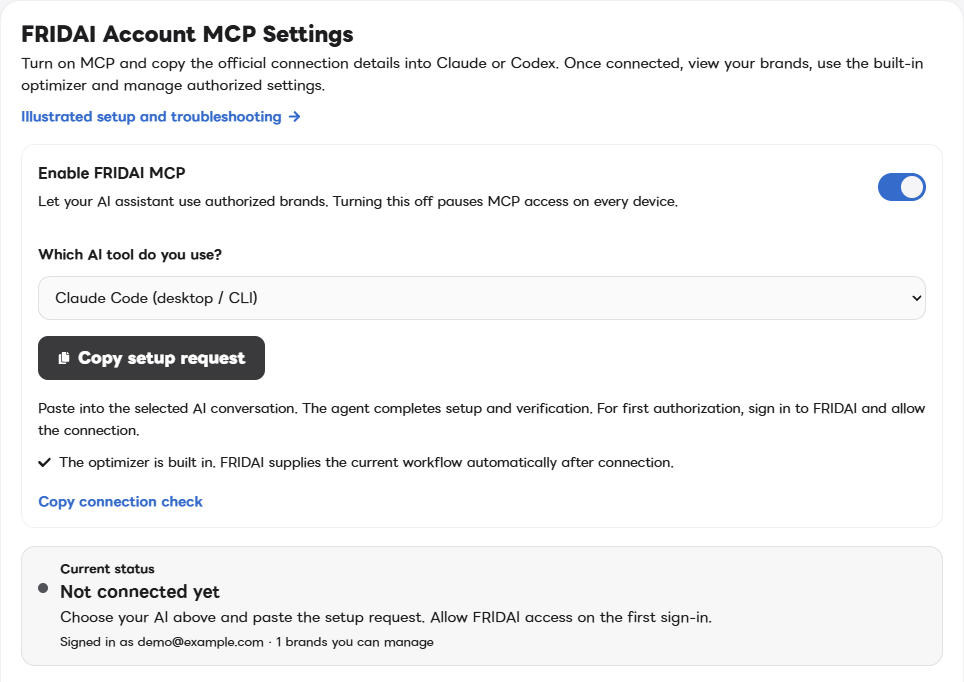
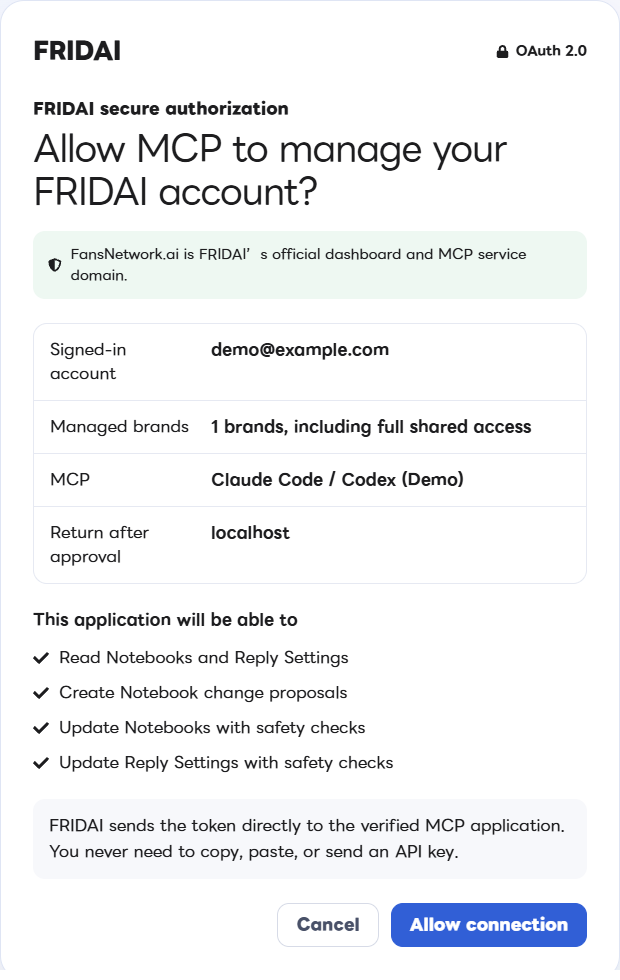
Actual FRIDAI screens with demonstration data and no user credentials. Click to enlarge. Your account, brands and client name will differ.
Verification requires actual connection-status and optimizer calls. Saved configuration or OAuth Connected alone does not prove this conversation has loaded tools.
MCP: connected, tools available
FRIDAI authorization: actual email and brand count
Optimizer: current built-in workflow available
A connection added after a conversation starts may need a tool refresh. Open one new conversation and ask to confirm FRIDAI MCP and the optimizer. No reinstall or new consent; uncalled tools remain unverified.
The agent preserves the error and next action. Installation, authorization, tool loading and preview have different remedies.
| Stage | What you see | Next action |
|---|---|---|
| Installation | CLI missing or configuration could not be saved | Locate the installed executable; otherwise use client MCP settings. |
| FRIDAI authorization | Needs authentication / sign-in incomplete / stdin is not a terminal | Complete browser consent once. Use Claude Code /mcp when no interactive terminal is available. |
| Tool loading | OAuth Connected, but no tools in this conversation | Open one new conversation. Claude Code API/provider accounts need an independent CLI connection. |
| FRIDAI switch | RULEOPS_CONNECTION_DISABLED | Turn the MCP switch on; reuse existing authorization. |
| Permissions | INSUFFICIENT_SCOPE or client-denied tool | Reauthorize missing FRIDAI scopes or allow the specific client-blocked action. Ask your admin about organization restrictions. |
| Preview generation | required_retry/NOTEBOOK_PREVIEW_GENERATION_FAILED | The test is incomplete. Retry once, then report runId, traceId and code. Do not reinstall MCP. |
| Preview account | NOTEBOOK_PREVIEW_ACCOUNT_REQUIRED/ACCOUNT_IDENTITY_UNAVAILABLE | Select the correct Chat account; reconnect the platform in FRIDAI if its identity is missing. |
| Notebook version | RULE_BASE_CHANGED | Read the latest Notebook and reconcile the candidate before previewing. |
Compare current and candidate Notebooks with fresh synthetic conversation. Every turn reports notification intent and available text: would notify, not requested, disabled, suppressed, failed or incomplete. Incomplete is not a pass or a no-notification decision.
Preview simulates notifications without sending LINE/Telegram, phone calls or publishing a Notebook. Actual receipt needs a separate recipient-binding and real-delivery check.
Give support the failed stage, error code, time and runId/traceId if present. Keep passwords, tokens and API keys private. Contact FRIDAI support
Advanced manual setup
Manual CLI commands are for troubleshooting or API-only accounts. Most Claude and Claude Code users can use the default Claude connector on the settings page.
codex mcp add fridai-ruleops --url https://www.fansnetwork.ai/api/mcp/ruleops
codex mcp login fridai-ruleopsStart using it
Start with a full review, then make smaller adjustments to tone or reply settings.
Connect to FRIDAI RuleOps, list my available accounts, and read the latest AI rules and reply settings. Check for contradictions, missing information, tone consistency, and human handoff conditions. Explain the risks and suggested changes, and do not update anything yet.
Using the new Notebook version you just wrote, create 10 synthetic test scenarios. Compare the before and after replies, mark each case as improved, unchanged, or regressed, then tell me whether it meets the update standard. Use only your own AI quota; do not read real customer conversations or update the Notebook yet.
Read the current AI rules and improve only the reply tone and clarity. Do not change confirmed prices, business hours, refund policies, or service scope. Explain each reason first, and update only after I say OK.
Read the current reply settings and identify anything that may cause over-replying, missed replies, or late human handoff. Suggest conservative changes, showing the current and proposed values, and update only after I say OK.
List Message Center conversations from the last 7 days for brands under my FRIDAI account. Read and summarize only; do not send, edit, or delete messages. For a backup, use prepare_message_center_export to create a CSV link that expires in 5 minutes.
FRIDAI Post Auto-Post
No more hunting for dashboard buttons. Once connected, ask your own AI assistant for Auto-Post setup progress, current settings, scheduled posts and performance; change settings, pause or resume, save drafts or schedule posts, or have it write text drafts and short-video scripts.
Once your AI assistant is connected to FRIDAI it can read and change AutoPost, save drafts and schedule posts. Plans you buy later, such as FRIDAI Post, work right away without reconnecting. Every change is previewed and runs only after you confirm.
Which Auto-Post setup step am I on and what should I do next? Give me the dashboard link.
Look at my current Auto-Post settings, summarize them in one paragraph and suggest one thing worth changing.
Turn on the Threads viral writer and rotate only "Method breakdown" and "Explainer digest". Show me before and after first; apply only when I say yes.
Pause auto-posting for now. Show me the before and after and wait for my confirmation.
Write a Threads draft for tomorrow about our new product launch and save it as a draft for me to approve in the dashboard.
Write a 30-second short-video script about the three most common beginner mistakes.
Which posts have performed best recently, and when is the best time to post?
Every change is shown as before → after first, and your AI assistant confirms only after you agree. Drafts are published only after approval in the dashboard; a scheduled post is published automatically at its time once you confirm the preview, and you can cancel it in the dashboard until then. MCP never posts immediately and never produces images or videos.
For custom content production such as AI avatar short videos, email [email protected].
Safety gate
RuleOps gives analysis to your Claude or Codex and saves the previous Notebook text as a version before every direct update.
Troubleshooting
This is the expected security response. /api/mcp/ruleops is the official Claude and Codex endpoint, not a tutorial page. Open MCP Settings, copy the agent setup request into Codex or Claude chat, then follow the FRIDAI sign-in prompt.
MCP appears when the FRIDAI account has at least one active paid subscription or a US$1 trial (20 writes in total during the trial, unlimited reading). Free sign-up, demo, and inactive accounts are excluded. Refresh the dashboard after a new payment completes.
Regular users never need to view or copy a key. Revoke the old connection in MCP Settings, run the official command again, and approve it in your browser.
The rules or reply settings changed after the proposal was created. Ask Claude or Codex to read the latest version and create a new proposal so newer settings are not overwritten.
Ready to connect
Add FRIDAI as a connector in Claude, or paste the setup request into Codex or Claude Code, then sign in and allow the connection in your browser. No API key handling is required.